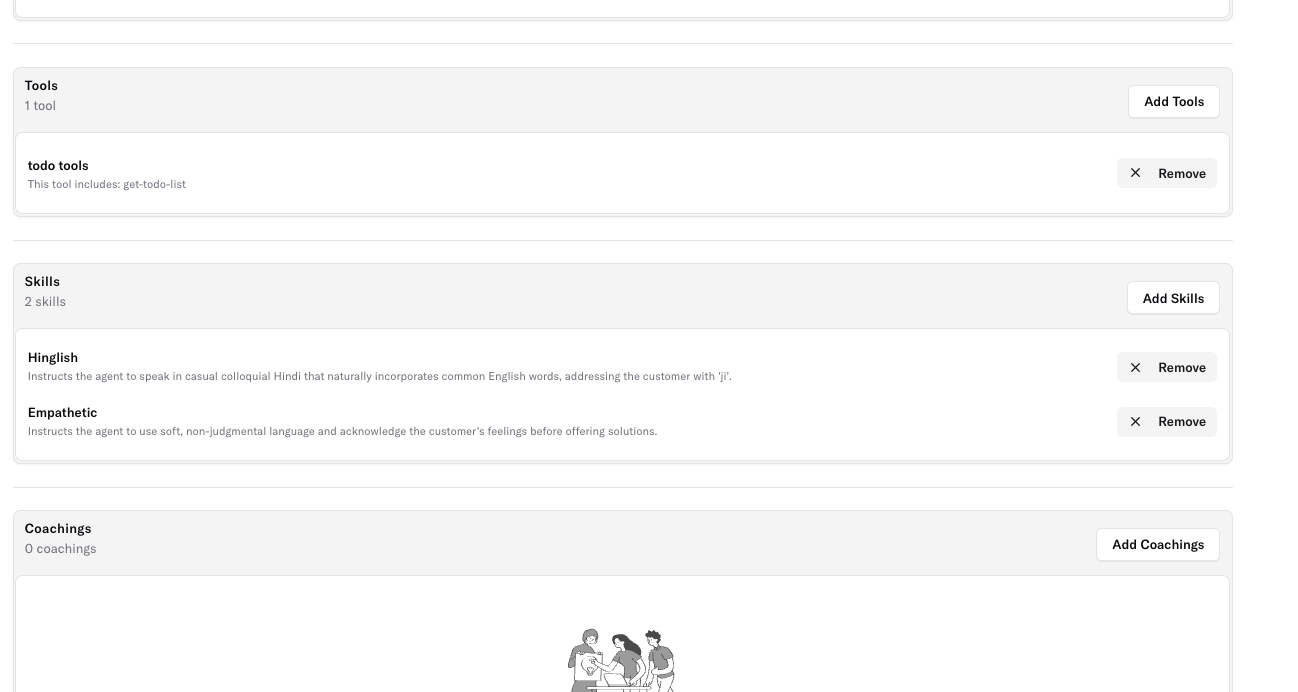
What are Agent Skills?
Agent Skills are named “mini‑prompts” you can attach to an agent. Each skill contains a short piece of instruction (for example):Introduce yourself only once at the start of the call. If the customer says “hello” again mid‑call or re‑opens the conversation do not re‑introduce yourself. Simply continue from where the conversation left off.Skills are reusable – the same skill can be attached to multiple agents. Why use them?
- Consistency – All agents that need the same behavior share one skill, so you never forget to copy‑paste the prompt.
- Speed – Add or change a behavior in seconds without editing the main system prompt.
- Safety – Disable a skill temporarily without deleting it, letting you experiment safely.
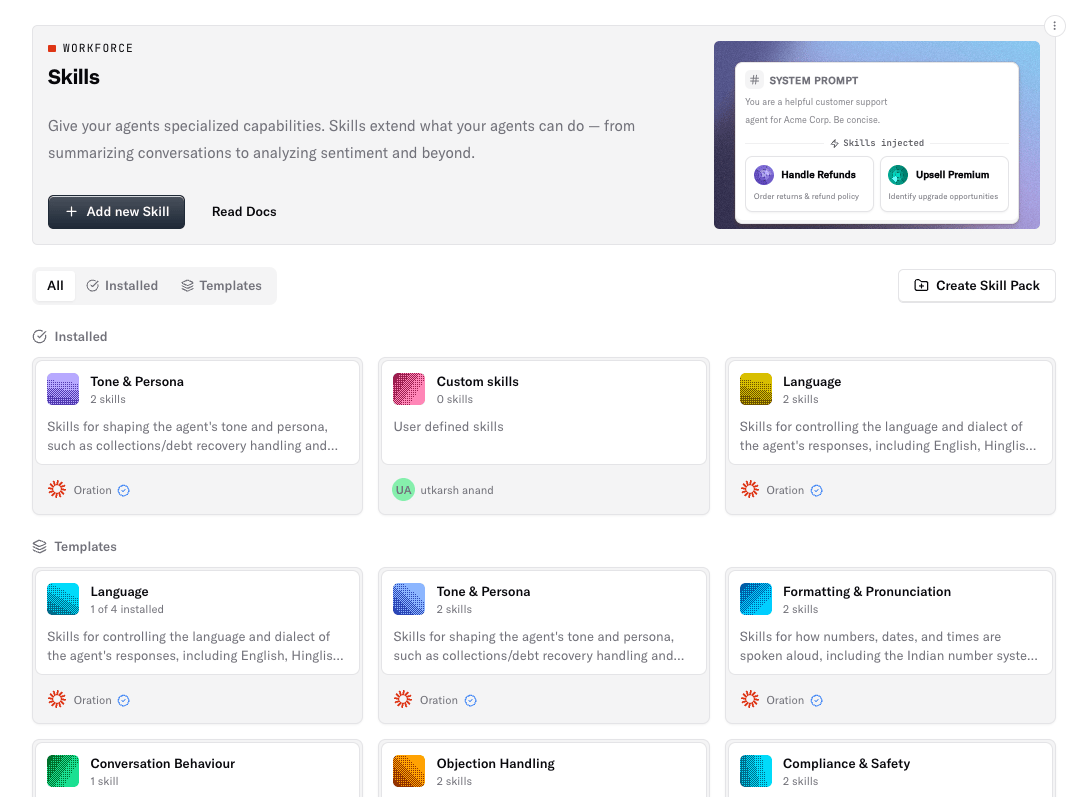
Where do I find Agent Skills?
- In the left navigation select Agents → Skills.
- The page shows a list of existing skills grouped by the skill pack they belong to.
(Screenshot above shows the Agent Skills page.)
Creating a New Skill
Open the Create Form
- Click Create Skill (top‑right button on the Skills page).
Fill in the fields
Save
- Click Create skill.
- The new skill appears in the list under the selected pack.
Editing an Existing Skill
- In the skill list click the three‑dot menu next to the skill you want to change.
- Choose Edit – the SkillEditDialog opens.
- Update Name, Description, or Instructions and hit Save.
Tip: The edit dialog also lets you move the skill to a different pack via the pack dropdown.
Enabling / Disabling a Skill
- Each skill has an on/off toggle in its card.
- Turning a skill off removes its prompt from the agent’s system prompt while keeping the definition intact.
Using Skill Packs
- Skill Packs are purely organizational – they group related skills (e.g., On‑boarding, Refund Handling).
- Packs have no enable/disable functionality; you manage visibility at the individual skill level.
- Packs can be installed from pre‑built templates (provided by Oration) via the Install Pack button on the pack page.
Best Practices for Non‑Developers
Previewing Skills in Action
- From the Agent Details page click Preview → Test Agent.
- Interact with the agent (type or speak).
- Observe how the newly added skill influences the response.
Screenshot of attaching a skill to an agentIf the behavior isn’t as expected, return to Skills → edit or toggle the skill and preview again.