

Overview
The Twenty CRM integration enables seamless synchronization between your Twenty CRM contacts and Oration AI customers. This integration provides bidirectional data flow and automatic post-call analysis updates, ensuring your CRM stays current with every customer interaction.What it does
Automatic customer synchronization
When you create, update, or delete a person in Twenty CRM’s People object, the integration automatically syncs that information to Oration AI as a customer. This happens through webhooks that Twenty CRM sends to Oration, which we configure using your API credentials. How it works: Once the integration is connected, these operations happen automatically:- Create: New contacts in Twenty CRM automatically become customers in Oration
- Update: Changes to contact details in Twenty CRM sync to Oration in real-time
- Delete: Removing a contact from Twenty CRM removes the associated customer from Oration
Post-call analysis notes
After every conversation with a customer who originated from Twenty CRM, Oration automatically creates a note in Twenty CRM with the post-call analysis data. This feature requires post-call analysis to be enabled on your agent. What’s included in notes:- Conversation summary
- Key topics discussed
- Custom analysis fields (if configured)
Post-call analysis notes are only created for customers that were originally synced from Twenty CRM to Oration.
Getting your Twenty CRM credentials
To connect Twenty CRM with Oration, you need two pieces of information:- API Key: Your Twenty CRM API authentication token
- Host URL: Your Twenty CRM instance URL
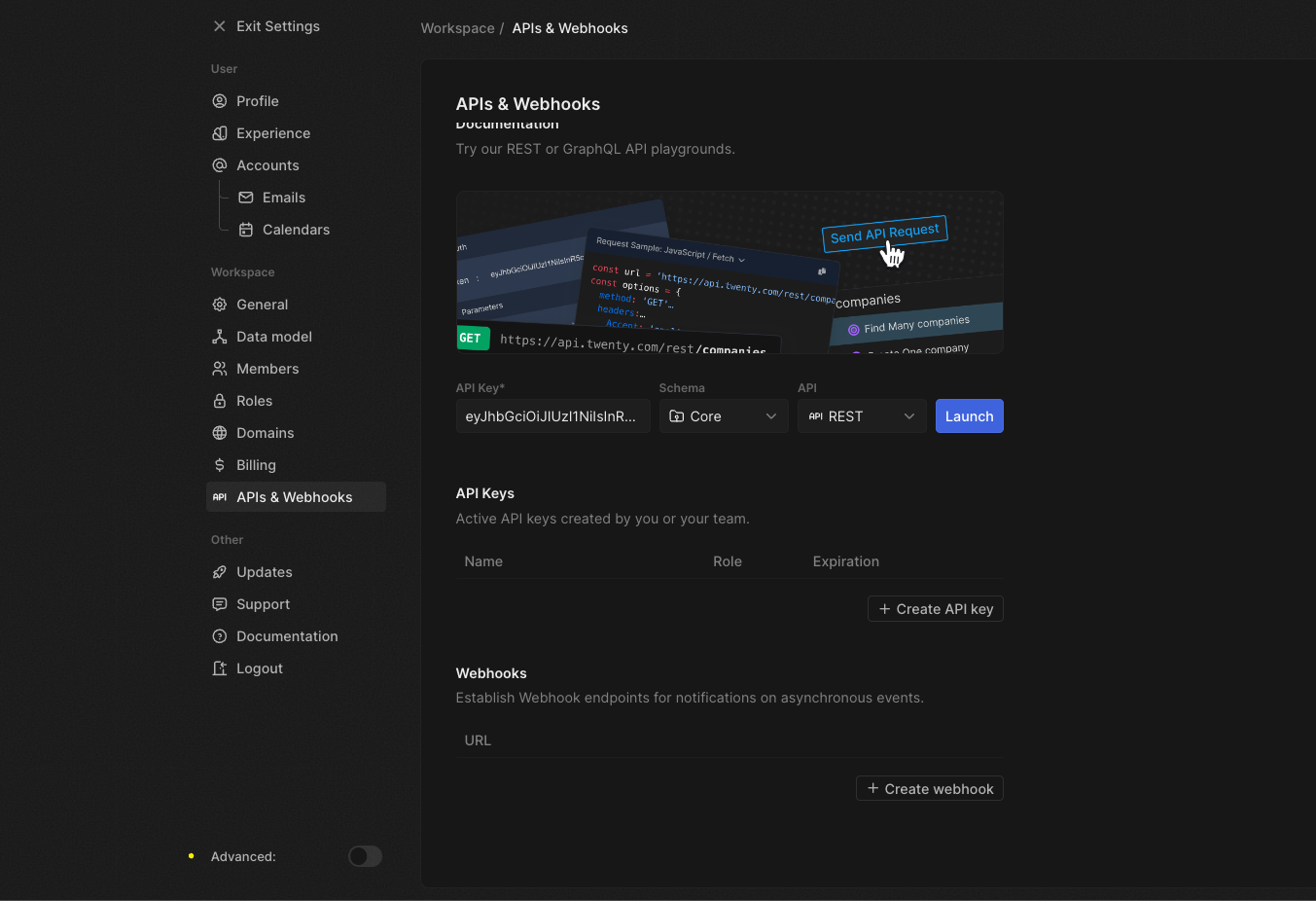
Finding your API key
- Log in to your Twenty CRM account
- Navigate to Settings in the left sidebar
- Click on API & Webhooks section
- Generate a new API key or copy your existing key
- Save this key securely—you’ll need it for the Oration setup
Finding your host URL
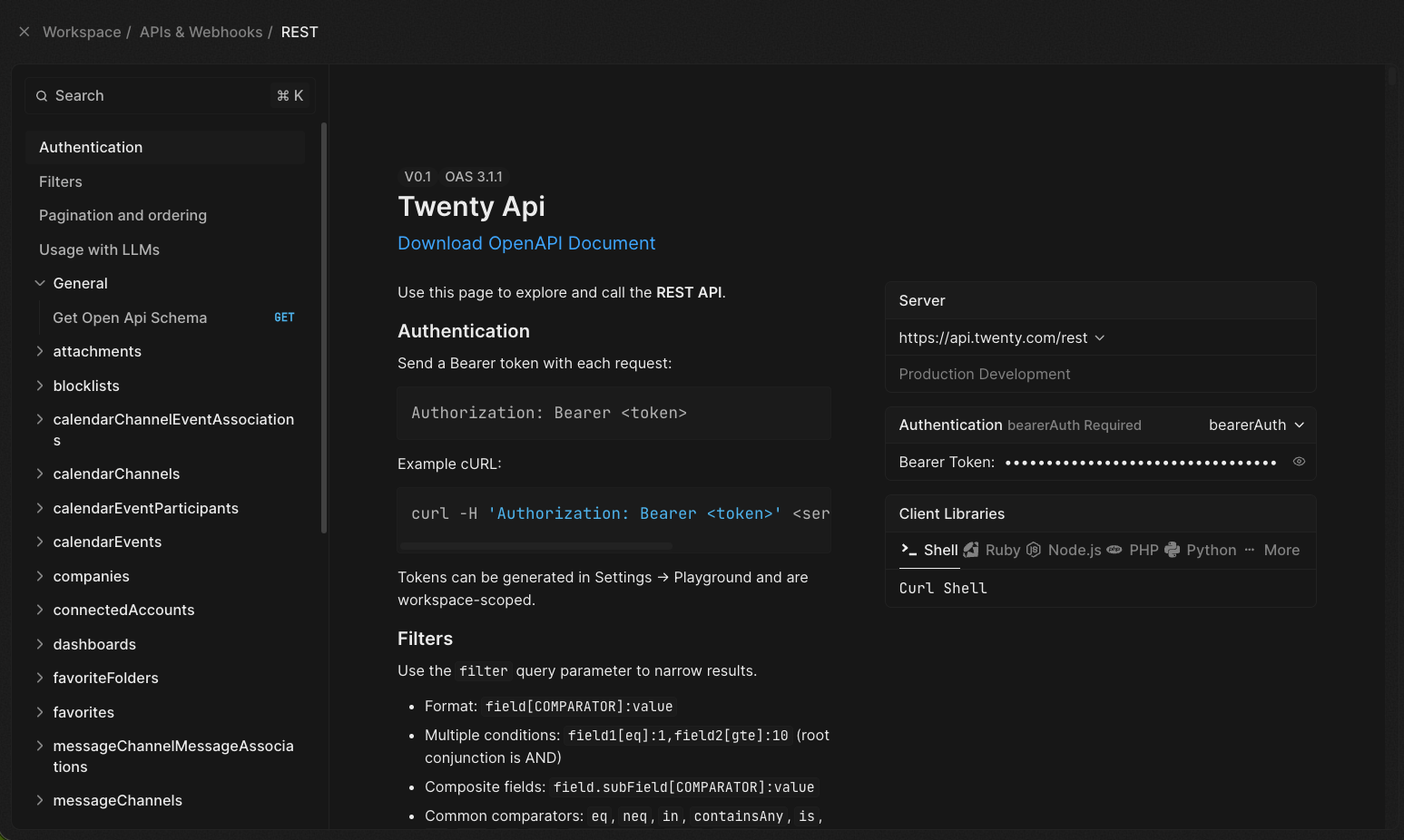
- In the API & Webhooks settings page, click the Launch button
- This opens a new page displaying all API endpoints
- Look for the API Host URL mentioned on this page
- Copy the complete URL (e.g.,
https://your-workspace.twenty.com)
If you’re self-hosting Twenty CRM, your host URL will be your custom domain (e.g.,
https://crm.yourcompany.com).Connecting Twenty CRM to Oration
Follow these steps to establish the connection:1. Navigate to workspace settings
In your Oration dashboard, click on Workspace Settings in the left navigation menu.2. Open integrations
Select Integrations (Beta) from the settings menu.3. Add Twenty CRM connection
- Find Twenty CRM in the list of available integrations
- Click Add New Connection
- Enter the following information:
- Connection Name: A friendly name to identify this connection (e.g., “Production CRM”)
- API Key: Paste the API key you copied from Twenty CRM
- Host URL: Enter your Twenty CRM instance URL
4. Test the connection
Click Test Connection to verify your credentials are valid. Oration will attempt to connect to your Twenty CRM instance and confirm the API key works correctly. If the test fails, double-check:- Your API key is copied correctly (no extra spaces)
- Your host URL is formatted correctly (includes
https://) - Your API key has the necessary permissions in Twenty CRM
5. Complete the connection
Once the connection test succeeds, click Connect to finalize the integration. Oration will:- Perform an initial sync: Import all existing people from your Twenty CRM account into Oration’s customer table
- Configure webhooks: Set up webhook listeners in your Twenty CRM instance
- Monitor for changes: Listen for webhook events to sync any future create, update, or delete operations in real-time
The initial sync may take a few minutes depending on the number of contacts in your Twenty CRM account. After the initial sync completes, all subsequent changes are synced automatically via webhooks.
Troubleshooting
Connection test fails
Check your API key Ensure the API key is copied exactly as shown in Twenty CRM, with no extra spaces or characters. Verify host URL format The host URL should includehttps:// and match exactly what appears in your browser when accessing Twenty CRM.
Confirm API permissions
Make sure your API key has read and write permissions for the People object in Twenty CRM.
Contacts not syncing
Check webhook configuration Navigate to Twenty CRM’s webhook settings and verify that webhooks are configured to send to Oration’s endpoint. Review connection status In Oration’s Integrations page, check that your Twenty CRM connection shows as “Active” or “Connected.”Post-call analysis notes not appearing
Enable post-call analysis on your agent Verify that post-call analysis is enabled on the specific agent handling the conversations. Confirm customer source Post-call analysis notes are only created for customers that originated from Twenty CRM. Check that the customer record shows Twenty CRM as the source.Need more help? Reach out to our team at support@oration.ai