

Overview
Coaching in Oration is a powerful way to train your agents to handle specific scenarios with the right responses. By defining coaching instructions, you ensure that your agents consistently follow best practices and company guidelines during customer interactions.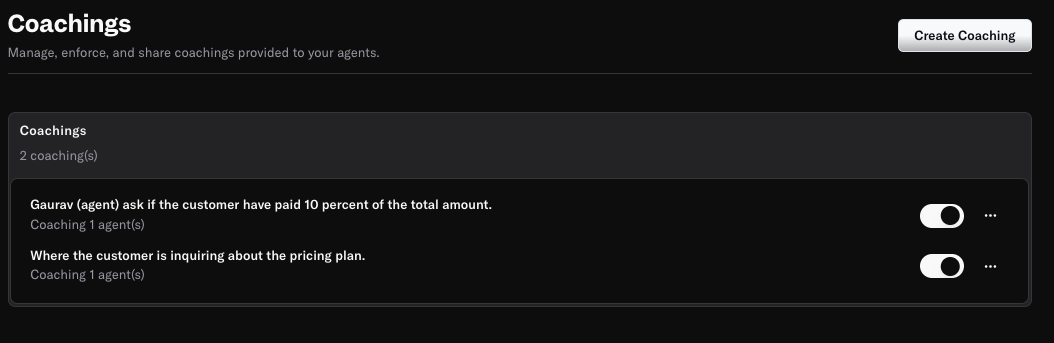
Viewing and Managing Coachings
The Coaching dashboard provides an overview of all coaching instructions you’ve created. For each coaching, you can see:- Scenario: The situation or trigger for the coaching (e.g., “Where the customer is inquiring about the pricing plan”).
- Assigned Agents: Which agents will receive this coaching.
- Status Toggle: Enable or disable coaching as needed.
Creating a New Coaching
To add a new coaching instruction, click the Create Coaching button.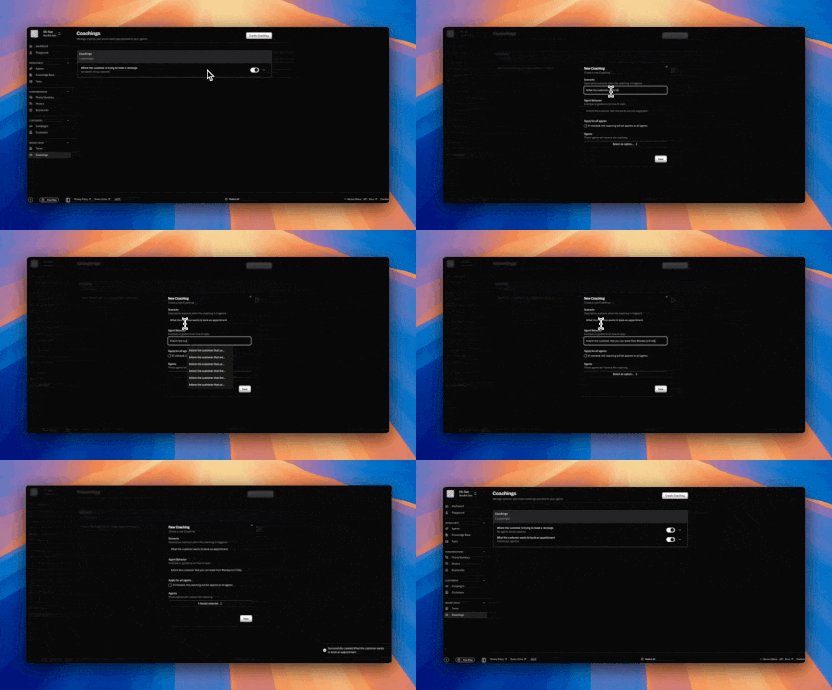
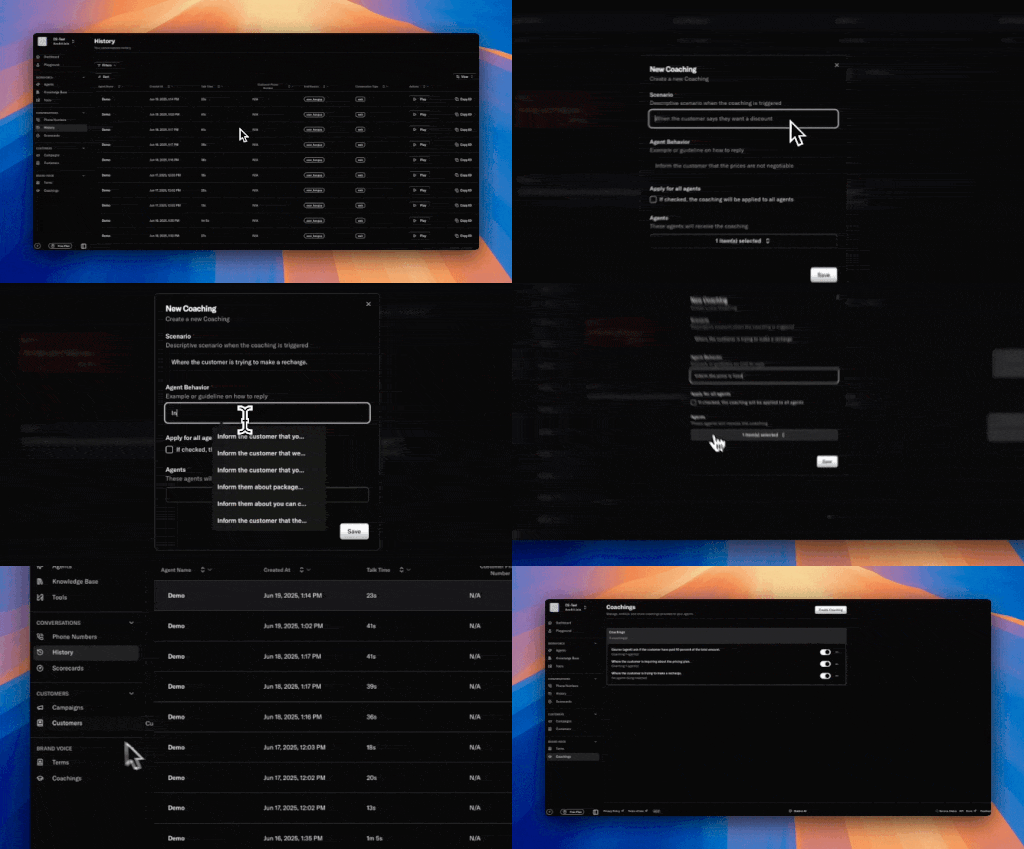
Field Explanations
-
Scenario
Describe the situation when this coaching should be triggered.
Example: “When the customer says they want a discount” -
Agent Behavior
Provide a guideline or example of how the agent should respond.
Example: “Inform the customer that the prices are not negotiable” -
Apply for all agents
Check this box if you want the coaching to apply to every agent in your organization. -
Agents
Select specific agents who should receive this coaching if not applying to all.
Example Scenarios
-
Scenario: When the customer asks about payment status
Agent Behavior: Politely check if the customer has paid 10 percent of the total amount. -
Scenario: Where the customer is inquiring about the pricing plan
Agent Behavior: Clearly explain the available pricing options.
Best Practices
- Use clear, specific scenarios to trigger coaching at the right moments.
- Write actionable, concise agent behaviors for easy adoption.
Need more help? Reach out to our team at support@oration.ai