

What are Tools?
Agents created using the Assistants API can be equipped with tools that allow them to perform more complex tasks or interact with your application.- Transfer calls or end calls
- Access external data or APIs
- Trigger workflows in your business systems
- Send SMS messages, update records, and more
Setting Up a Custom Tool
You can create a custom tool action directly from the Oration AI dashboard. Here’s how to use the Create Action form: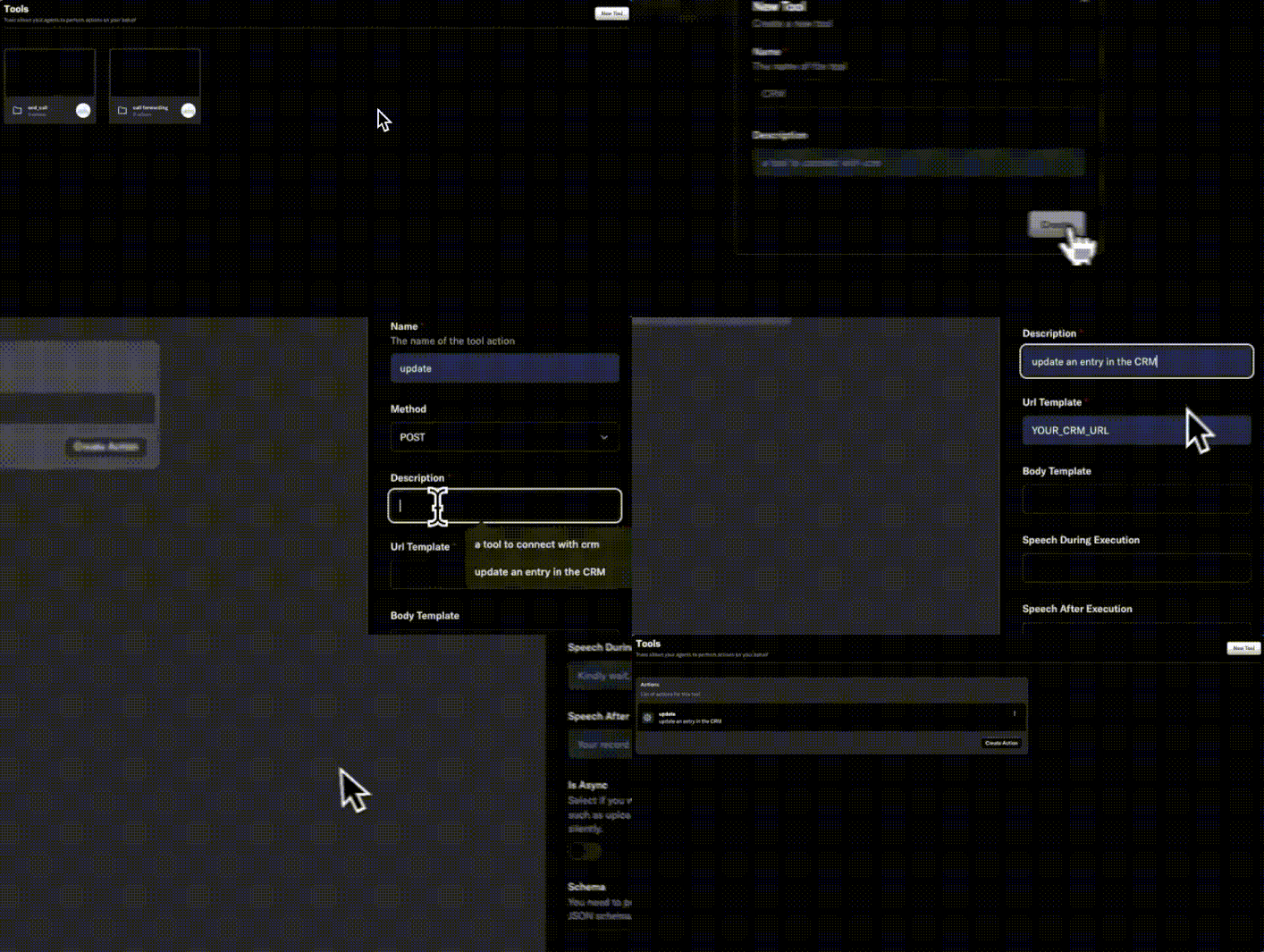
Field Explanations
-
Name
The name of your tool action. Choose something descriptive (e.g., “Get Weather”, “Update CRM Contact”). -
Method
Select the HTTP method for your API call. Options:GET,POST,PUT,DELETE,PATCH,OPTIONS,HEAD. -
Description
Briefly describe what this tool does. This helps you and your team understand its purpose. -
Url Template
The endpoint your tool will call. You can use variables if needed (e.g.,https://api.example.com/users/{{userId}}). -
Body Template
(Optional) The request body to send with your API call. Use this forPOST,PUT, orPATCHmethods. -
Speech During Execution
(Optional) What the agent should say while the tool is running (e.g., “Let me check that for you…”). -
Speech After Execution
(Optional) What the agent should say after the tool finishes (e.g., “I’ve updated your information.”). -
Is Async
Enable this if you want the function to run in the background, such as uploading results silently. -
Schema
Provide a valid OpenAI-compatible JSON schema describing the parameters your tool expects.
Example Use Cases
- Updating CRM records during a call
- Sending follow-up SMS after a conversation
- Fetching product information from your database
Best Practices
- Use clear, descriptive names and descriptions for each tool.
- Test your API endpoints before connecting them to your agent.
- Use the speech fields to keep users informed during longer operations.
- Keep your JSON schema up to date for accurate parameter validation.
Related
When the agent needs a person rather than an API, use Assists instead of a tool. Assists keep the AI on the line while a teammate handles the request from a contact-center queue.Need more help? Reach out to our team at support@oration.ai