> ## Documentation Index
> Fetch the complete documentation index at: https://docs.oration.ai/llms.txt
> Use this file to discover all available pages before exploring further.
# Agent Skills
> Add reusable prompt blocks that empower your agents
## What are Agent Skills?
Agent Skills are named “mini‑prompts” you can attach to an agent. Each skill contains a short piece of instruction (for example):
> *Introduce yourself only once at the start of the call. If the customer says "hello" again mid‑call or re‑opens the conversation do not re‑introduce yourself. Simply continue from where the conversation left off.*
Skills are **reusable** – the same skill can be attached to multiple agents.
**Why use them?**
* **Consistency** – All agents that need the same behavior share one skill, so you never forget to copy‑paste the prompt.
* **Speed** – Add or change a behavior in seconds without editing the main system prompt.
* **Safety** – Disable a skill temporarily without deleting it, letting you experiment safely.
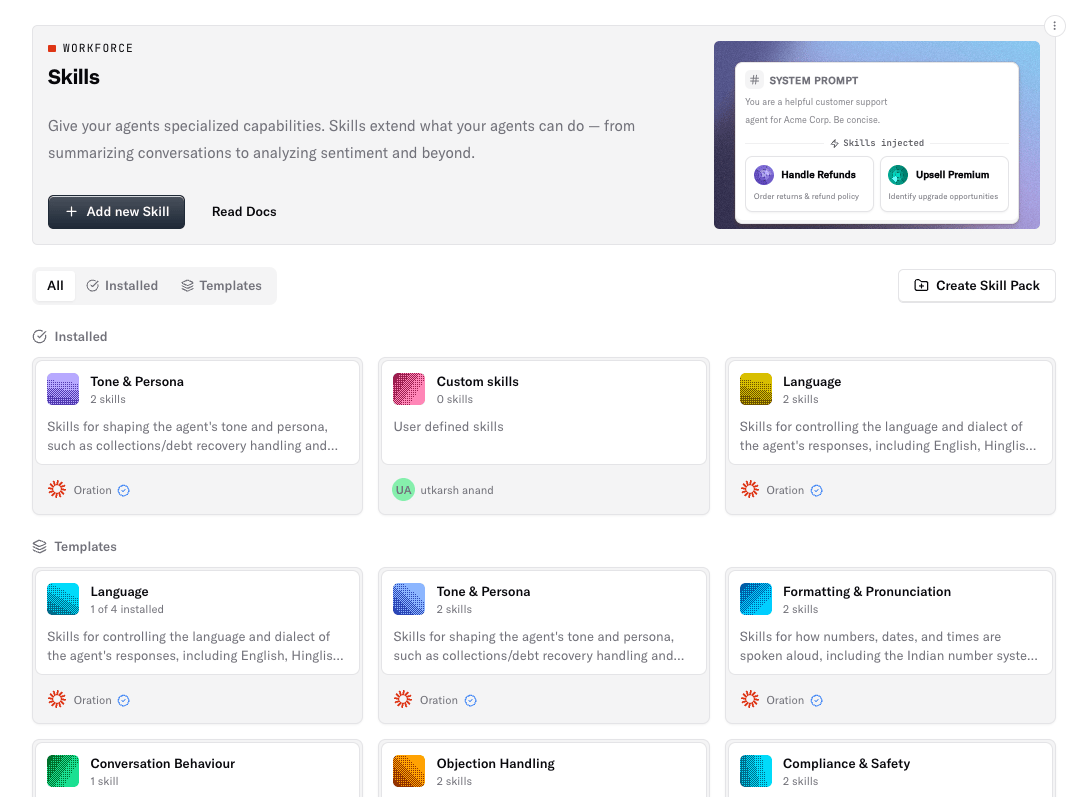 ## Where do I find Agent Skills?
* In the left navigation select **Agents → Skills**.
* The page shows a list of existing skills grouped by the *skill pack* they belong to.
> *(Screenshot above shows the Agent Skills page.)*
## Creating a New Skill
### Open the Create Form
1. Click **Create Skill** (top‑right button on the Skills page).
### Fill in the fields
| Field | What to put | Tips |
| ---------------------------- | ----------------------------------------------------------- | ------------------------------------------------------------- |
| **Name** | A short, memorable title (e.g., *Refund‑Policy Reminder*). | Use title‑case, keep it under 30 chars. |
| **Description** *(optional)* | One‑line summary that appears in the skill list. | Helpful for teammates. |
| **Instructions** | The exact wording you want the agent to use. | Write in the voice you want the agent to speak. |
| **Skill Pack** | Choose an existing pack **or** create a new one on the fly. | Packs are logical groups (e.g., *Customer Support*, *Sales*). |
### Save
* Click **Create skill**.
* The new skill appears in the list under the selected pack.
## Editing an Existing Skill
1. In the skill list click the three‑dot menu next to the skill you want to change.
2. Choose **Edit** – the **SkillEditDialog** opens.
3. Update **Name**, **Description**, or **Instructions** and hit **Save**.
> **Tip:** The edit dialog also lets you move the skill to a different pack via the pack dropdown.
## Enabling / Disabling a Skill
* Each **skill** has an on/off toggle in its card.
* Turning a skill *off* removes its prompt from the agent’s system prompt while keeping the definition intact.
## Using Skill Packs
* **Skill Packs** are purely organizational – they group related skills (e.g., *On‑boarding*, *Refund Handling*).
* Packs have no enable/disable functionality; you manage visibility at the individual skill level.
* Packs can be installed from pre‑built templates (provided by Oration) via the **Install Pack** button on the pack page.
## Best Practices for Non‑Developers
| Recommendation | Why it helps |
| ------------------------------------------------ | ----------------------------------------------------------------------------------------- |
| **Keep prompts short & clear** | Short prompts consume fewer tokens and are easier for the LLM to follow. |
| **Use consistent naming** | E.g., *“FAQ – Billing”* → makes it easy to locate skills later. |
| **Group related skills into a pack** | Keeps the UI tidy and helps you find skills quickly. |
| **Test in preview before enabling** | Use the **Preview → Test Agent** button to see the skill in action before rolling it out. |
| **Disable instead of delete** when experimenting | You can re‑enable later without recreating the text. |
| **Include a description** | Helps teammates understand the purpose of each skill at a glance. |
## Previewing Skills in Action
1. From the **Agent Details** page click **Preview** → **Test Agent**.
2. Interact with the agent (type or speak).
3. Observe how the newly added skill influences the response.
> *Screenshot of attaching a skill to an agent*
## Where do I find Agent Skills?
* In the left navigation select **Agents → Skills**.
* The page shows a list of existing skills grouped by the *skill pack* they belong to.
> *(Screenshot above shows the Agent Skills page.)*
## Creating a New Skill
### Open the Create Form
1. Click **Create Skill** (top‑right button on the Skills page).
### Fill in the fields
| Field | What to put | Tips |
| ---------------------------- | ----------------------------------------------------------- | ------------------------------------------------------------- |
| **Name** | A short, memorable title (e.g., *Refund‑Policy Reminder*). | Use title‑case, keep it under 30 chars. |
| **Description** *(optional)* | One‑line summary that appears in the skill list. | Helpful for teammates. |
| **Instructions** | The exact wording you want the agent to use. | Write in the voice you want the agent to speak. |
| **Skill Pack** | Choose an existing pack **or** create a new one on the fly. | Packs are logical groups (e.g., *Customer Support*, *Sales*). |
### Save
* Click **Create skill**.
* The new skill appears in the list under the selected pack.
## Editing an Existing Skill
1. In the skill list click the three‑dot menu next to the skill you want to change.
2. Choose **Edit** – the **SkillEditDialog** opens.
3. Update **Name**, **Description**, or **Instructions** and hit **Save**.
> **Tip:** The edit dialog also lets you move the skill to a different pack via the pack dropdown.
## Enabling / Disabling a Skill
* Each **skill** has an on/off toggle in its card.
* Turning a skill *off* removes its prompt from the agent’s system prompt while keeping the definition intact.
## Using Skill Packs
* **Skill Packs** are purely organizational – they group related skills (e.g., *On‑boarding*, *Refund Handling*).
* Packs have no enable/disable functionality; you manage visibility at the individual skill level.
* Packs can be installed from pre‑built templates (provided by Oration) via the **Install Pack** button on the pack page.
## Best Practices for Non‑Developers
| Recommendation | Why it helps |
| ------------------------------------------------ | ----------------------------------------------------------------------------------------- |
| **Keep prompts short & clear** | Short prompts consume fewer tokens and are easier for the LLM to follow. |
| **Use consistent naming** | E.g., *“FAQ – Billing”* → makes it easy to locate skills later. |
| **Group related skills into a pack** | Keeps the UI tidy and helps you find skills quickly. |
| **Test in preview before enabling** | Use the **Preview → Test Agent** button to see the skill in action before rolling it out. |
| **Disable instead of delete** when experimenting | You can re‑enable later without recreating the text. |
| **Include a description** | Helps teammates understand the purpose of each skill at a glance. |
## Previewing Skills in Action
1. From the **Agent Details** page click **Preview** → **Test Agent**.
2. Interact with the agent (type or speak).
3. Observe how the newly added skill influences the response.
> *Screenshot of attaching a skill to an agent* 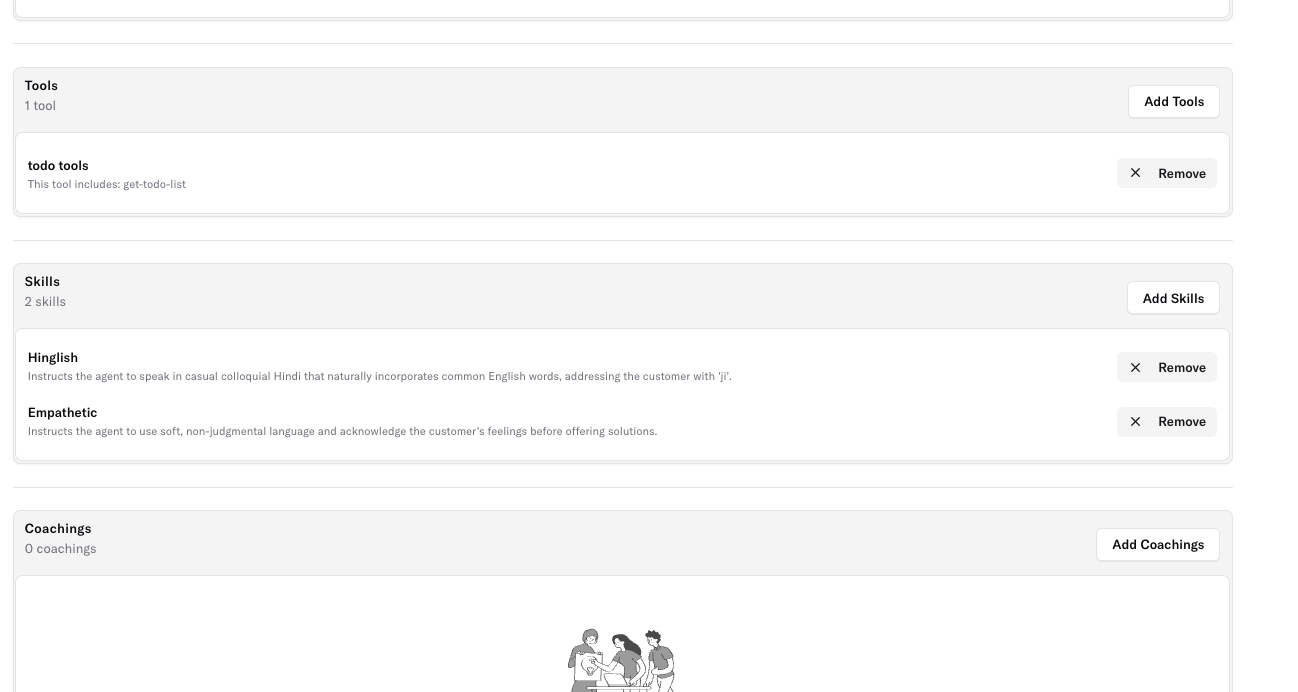 If the behavior isn’t as expected, return to **Skills** → edit or toggle the skill and preview again.
## Frequently Asked Questions
| Question | Answer |
| ------------------------------------------------------ | ------------------------------------------------------------------------------------------------------------------------- |
| *Can a skill be used by multiple agents?* | Yes – skills are stored at the workspace level, so any agent in the same workspace can use them. |
| *Do I need to restart the agent after adding a skill?* | No. Skills are injected into the system prompt each time a conversation starts, so changes take effect immediately. |
| *What if I want to remove a skill temporarily?* | Use the skill toggle to **disable** it; the prompt will be omitted without losing the skill definition. |
| *Is there a limit to how many skills I can have?* | Practically, the limit is the LLM token budget – keep the total prompt (base + skills) under the model’s max token count. |
| *Can I import a ready‑made skill pack?* | Yes – click **Install Pack** on any *Skill Pack Template* (found under the **Templates** tab). |
***
If the behavior isn’t as expected, return to **Skills** → edit or toggle the skill and preview again.
## Frequently Asked Questions
| Question | Answer |
| ------------------------------------------------------ | ------------------------------------------------------------------------------------------------------------------------- |
| *Can a skill be used by multiple agents?* | Yes – skills are stored at the workspace level, so any agent in the same workspace can use them. |
| *Do I need to restart the agent after adding a skill?* | No. Skills are injected into the system prompt each time a conversation starts, so changes take effect immediately. |
| *What if I want to remove a skill temporarily?* | Use the skill toggle to **disable** it; the prompt will be omitted without losing the skill definition. |
| *Is there a limit to how many skills I can have?* | Practically, the limit is the LLM token budget – keep the total prompt (base + skills) under the model’s max token count. |
| *Can I import a ready‑made skill pack?* | Yes – click **Install Pack** on any *Skill Pack Template* (found under the **Templates** tab). |
***